FaceMask Studio tracks your face and attaches PNG, JPEG, or animated GIF masks directly to an OBS camera source. It is lightweight, local, and made for playful stream moments.
FaceMask Studio 0.3.0 is certified for one specific Windows and OBS setup. Other operating systems, processor types, and OBS versions are not currently supported.
Required
Windows 10 or 11, 64-bit x64
Not supported on macOS, Linux, 32-bit Windows, or Windows on ARM.
OBS Studio 32.2.2, 64-bit
This is the only OBS release currently built and tested with the plugin.
DirectX 10.1-compatible graphics
GPU acceleration is preferred. Face tracking automatically falls back to the CPU if GPU tracking is unavailable.
About 1.5 GB free during installation
The download is 164 MB and installs about 405 MB. Updates temporarily stage a verified copy and preserve one backup.
Recommended for smooth use
8 GB RAM
Use 16 GB for complex OBS scenes, simultaneous recording, or several effects.
Modern four-core x64 processor
Lower the tracking rate or effect strength if OBS reports high CPU or GPU usage.
Current graphics drivers
Keep the driver for your NVIDIA, AMD, or Intel graphics up to date.
A clear, well-lit face in an OBS video source
The filter supports SDR video and tracks one face per filter. It does not open a second camera connection.
Install and privacy safety
Close OBS before installing, keep the entire plugin folder together, and use the supplied installer. Camera frames and face tracking stay on your PC.
Important limitation
Face tracking and coverage can be lost, so blur or mask coverage is not guaranteed. Do not rely on it to conceal identity or sensitive information.
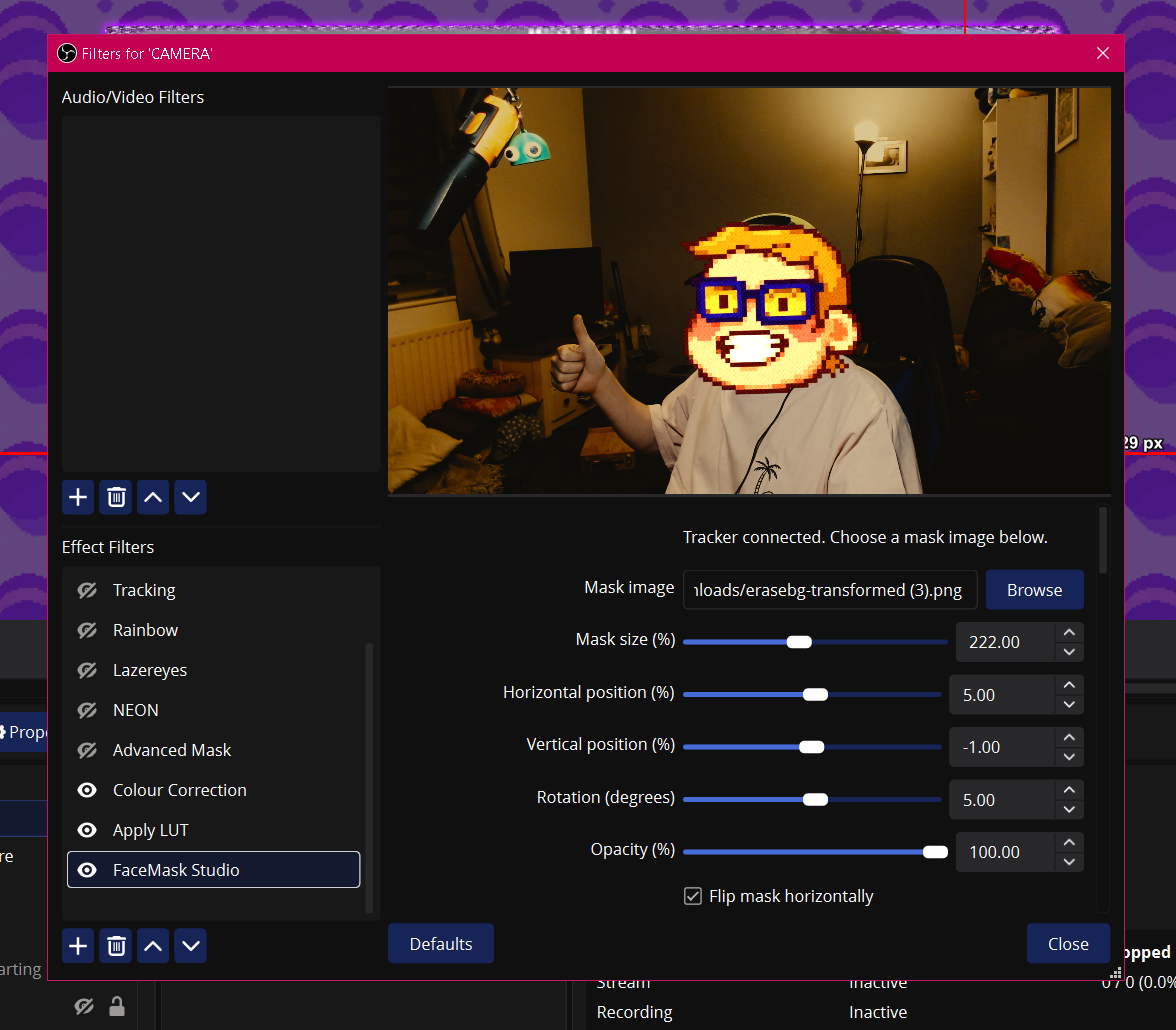
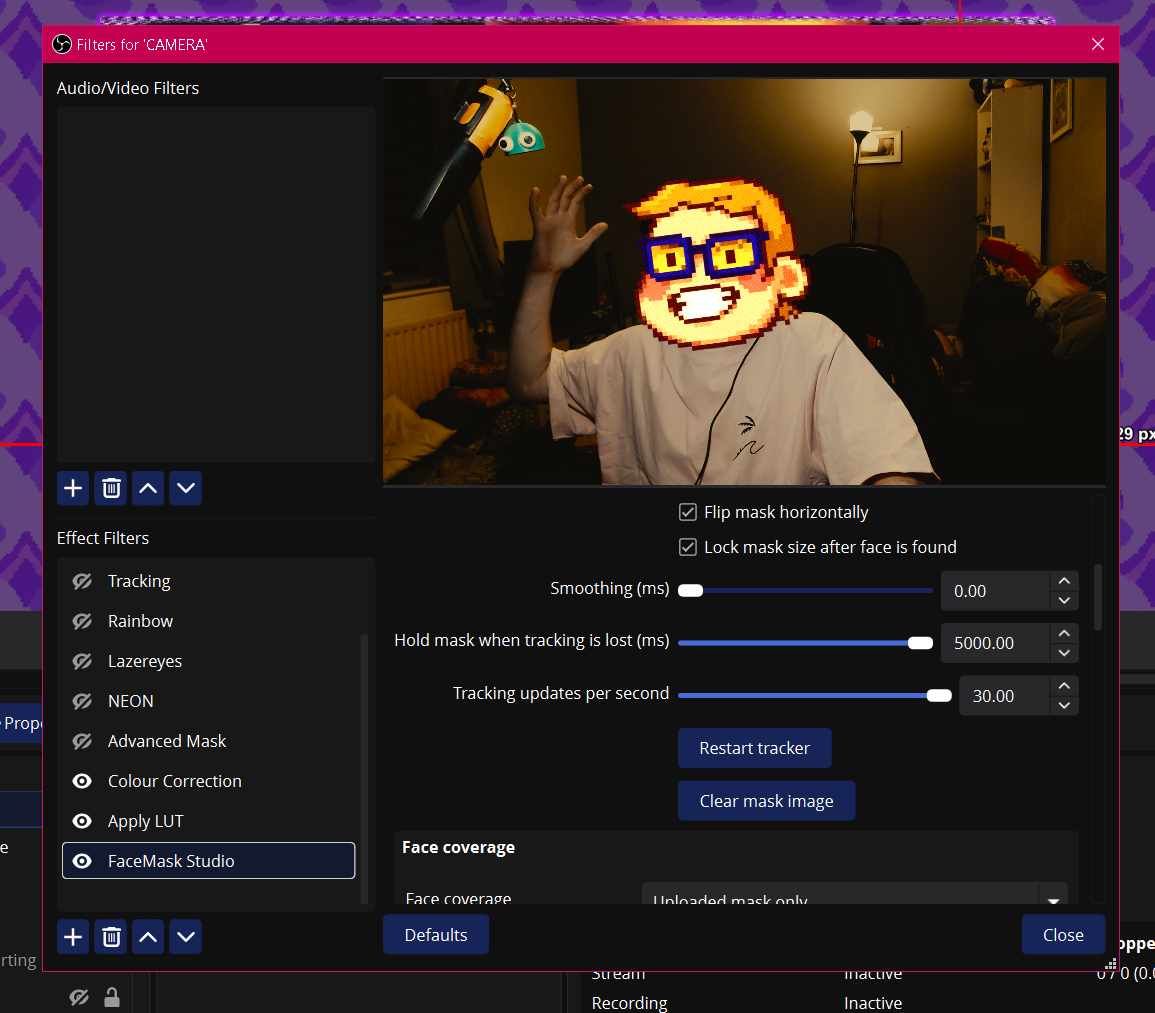
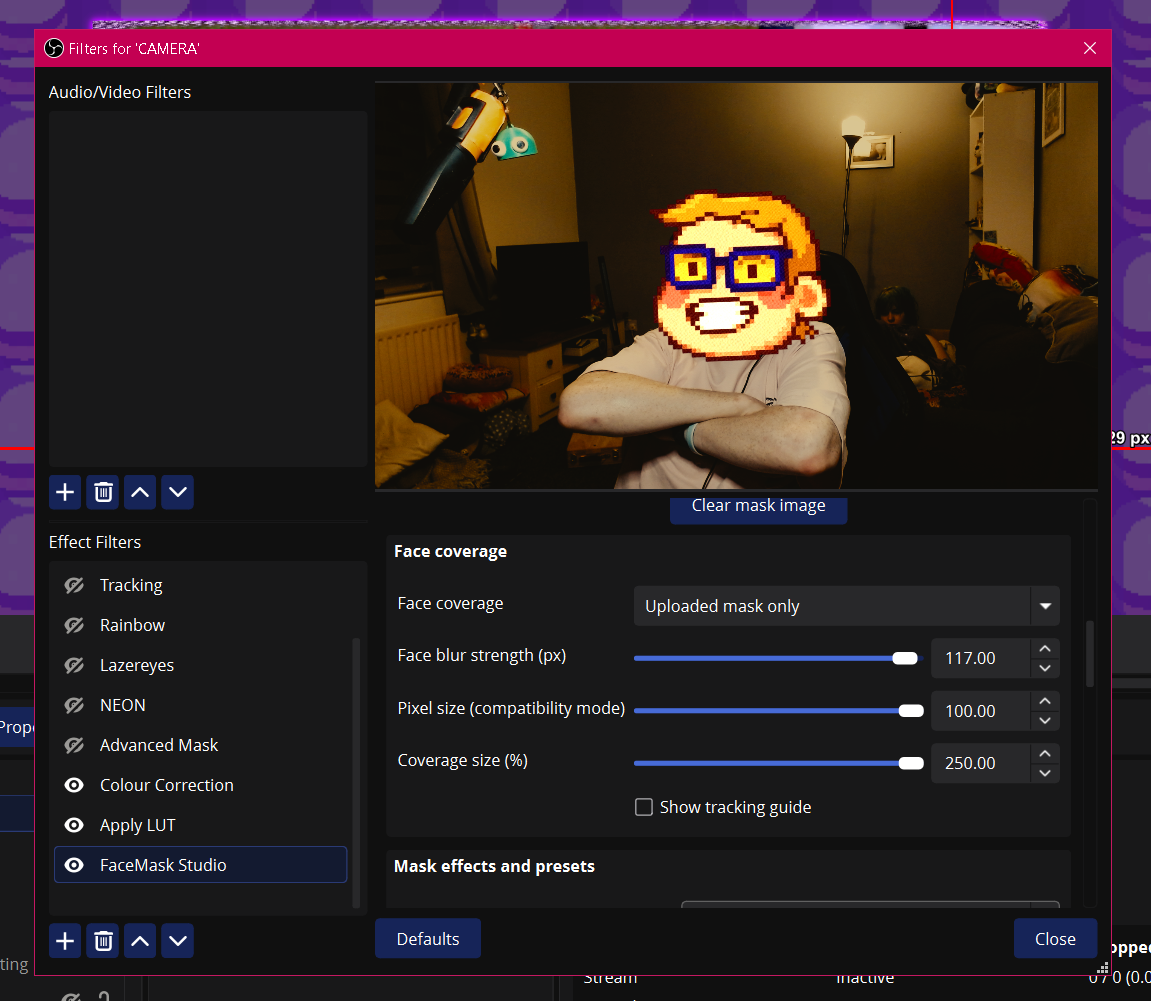
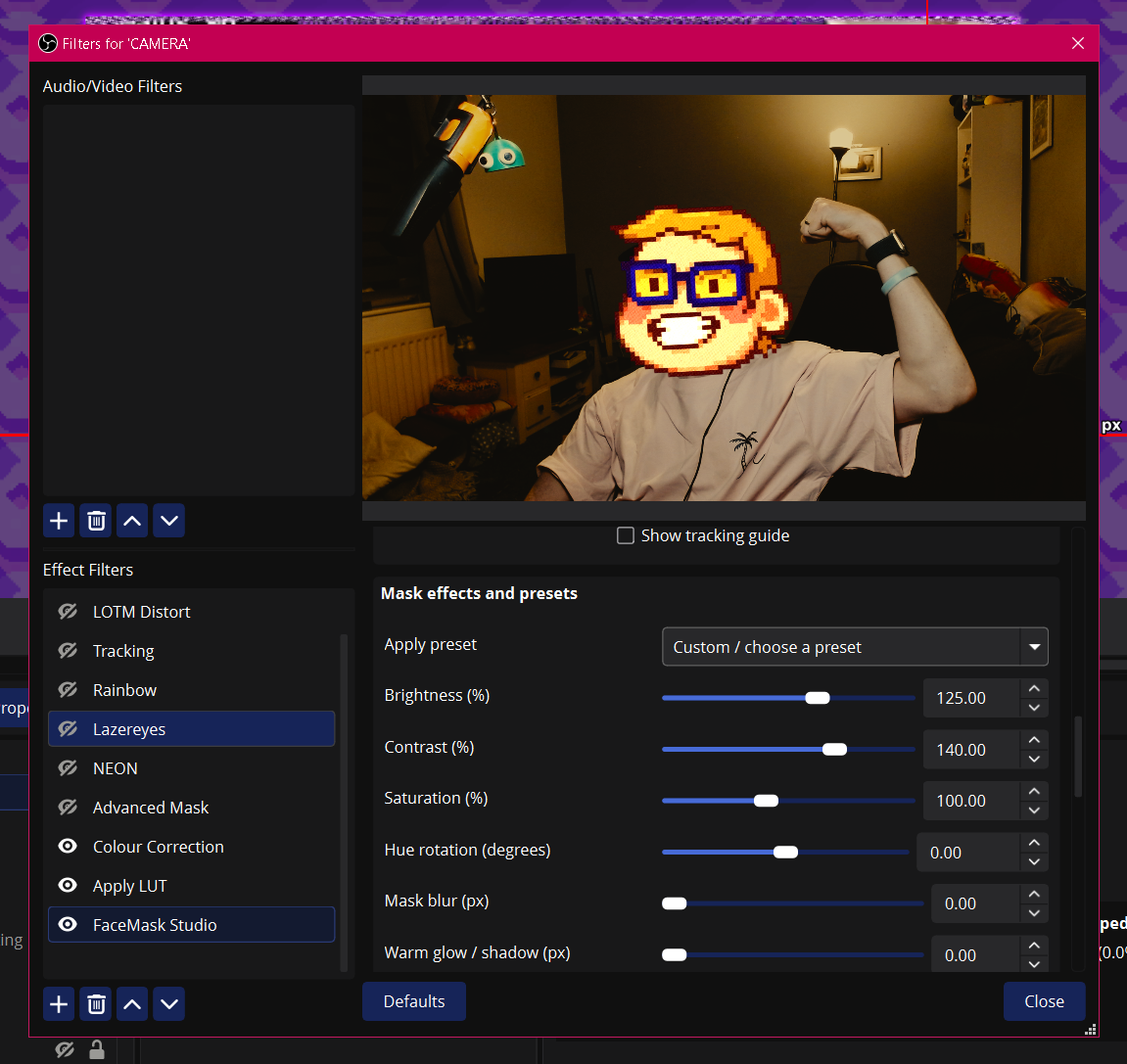
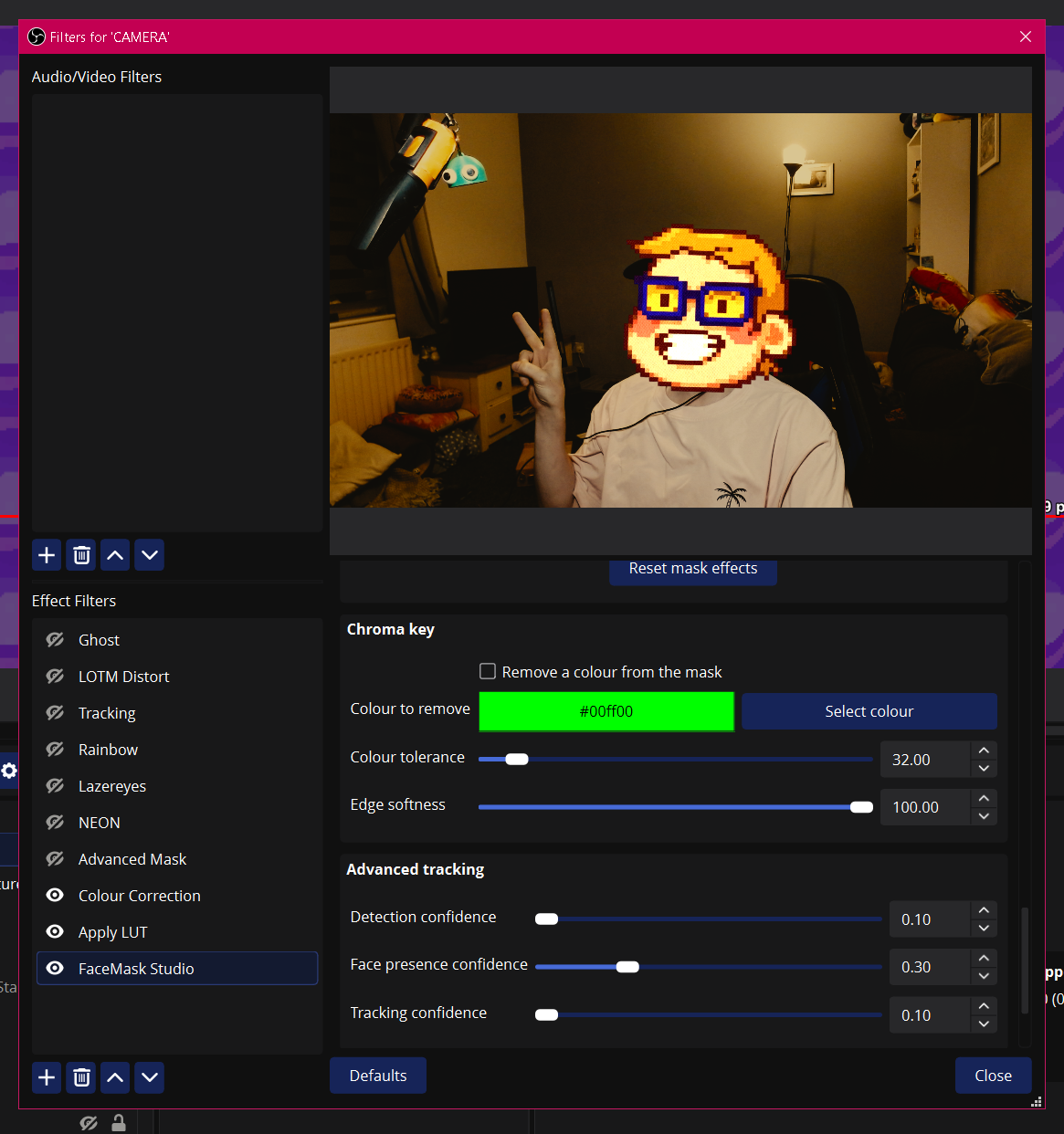
Real screenshots from the FaceMask Studio filter, from first setup through advanced controls.
FaceMask Studio selected in OBS Effect Filters.Face tracking controls and mask lock settings.Face coverage and blur controls.Mask effects and colour controls.Chroma key and advanced tracking controls.
What it does
Simple tools for bigger reactions.
Face tracking
Keep your mask attached to your face as you move, lean, and react on camera.
GIFs in motion
Use animated GIF masks as well as PNG and JPEG artwork, so your overlays can move with the moment.
Local processing
Your camera stays inside your OBS setup. No account or cloud upload is required.
Common questions
Know before you download.
Compatibility, privacy, mask formats, and the limits of face tracking.
Install help
Add it as an Effect Filter.
Once the files are installed, FaceMask Studio appears alongside OBS’s other source filters.
01
Close OBS
OBS must be closed while the plugin files are installed.
02
Extract and install
Extract the ZIP and run “Install FaceMask OBS.cmd”.
03
Open your camera filters
In OBS, right-click your camera source and choose Filters.
04
Add FaceMask Studio
Under Effect Filters, click + and select FaceMask Studio.
GIF tips
Use a transparent animated GIF with a modest canvas size and keep the file lightweight for smoother playback.
Plugin not showing?
Confirm OBS was closed during installation and that you are using the supported 64-bit Windows and OBS builds listed above.